Getting Started
Import the extension, equip player components, and configure your first visual timeline montage.
Import Package
Ensure Game Creator 2 is imported. Then, import the Animation Montages package. Files compile cleanly under Assets/Plugins/SkywardGames/AnimationMontages/.
Create Montage Asset
Right-click in your Project window and select Create > Game Creator > Characters > Animation Montage. Name your new asset (e.g., Interact_Potion).
Add Player Component
Select your Character GameObject and add the Animation Montage Player component. This handles timeline interpretation and playback.
Configure & Play
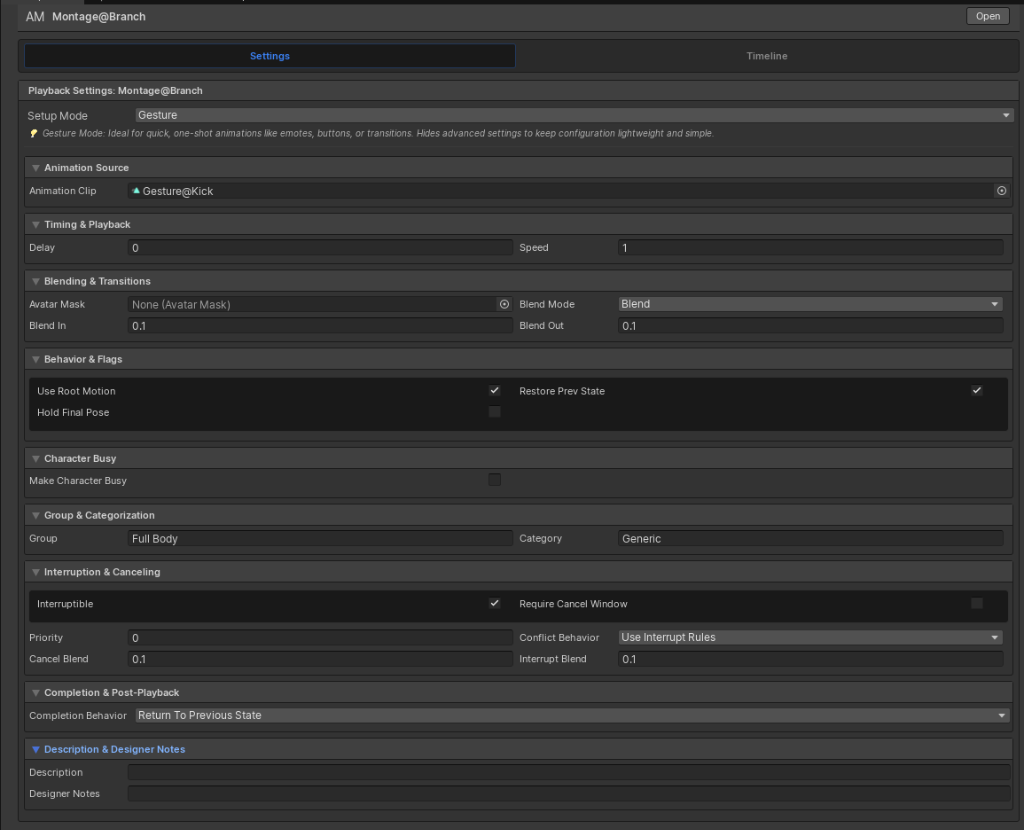
Select the Montage Asset. Choose between Gesture (one-shot) or State (sustained loop). Assign an animation clip, author timeline markers, and trigger it via the GC2 Play Animation Montage action.
Hierarchy
Inspector · Animation Montage Player
Create Asset Menu
System Requirements
| Target Component | Minimum Version | Recommended Version |
|---|---|---|
| Unity Editor | 2022.3 LTS | Unity 6 (6000.4.6f1+) |
| Game Creator 2 | v2.1.0 | v2.9.2+ |
| Render Pipelines | Built-in / URP / HDRP | Universal Render Pipeline (URP) |
The package compiles within the default Unity predefined assemblies. If your project enforces assembly definition boundaries, refer to the Architecture section to configure reference assemblies correctly.
Editor Preferences
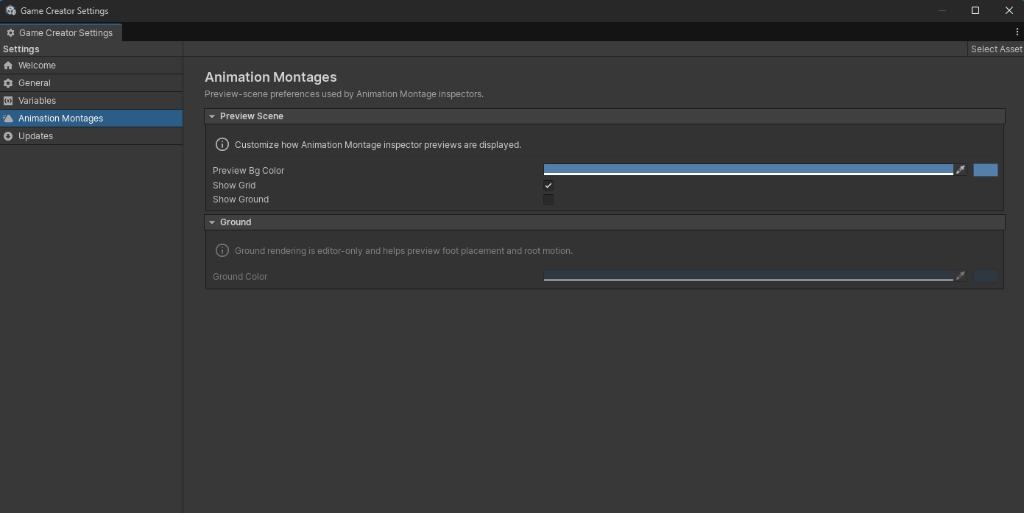
Customize your workspace in the Game Creator Settings window. Adjust preview mannequins, coordinate axes, grid visibility, and diagnostics to fit your preferences.