Visual Scripting
Animation Montages exposes a complete set of Actions, Conditions, and Triggers that integrate into standard Game Creator 2 workflows.
Game Creator 2 Actions
| Action Name | Description | Parameters |
|---|---|---|
Play Montage |
Play a montage asset on a character. | Montage asset, Blend overrides, Layer settings. |
Stop Montage |
Smoothly fade out and halt active playback. | Target character, Fade out duration. |
Cancel Montage |
Instantly interrupt active playback, skipping blend-out. | Target character. |
Set Montage Speed |
Scale playback speed multiplier at runtime. | Target character, Speed scale (float). |
Set Branch Result |
Force branch condition state to trigger custom paths. | Target character, Branch ID, Success state (bool). |
Toggle Transform Track |
Manually enable or disable a transform track. | Target character, Track ID, Enabled state (bool). |
Game Creator 2 Conditions
| Condition Name | Description | Use Case |
|---|---|---|
Is Montage Playing |
Check if a character is currently playing any montage. | Block movement inputs during interactions. |
Is Specific Montage |
Check if a character is playing a specific montage asset. | Verify if player is currently reloading. |
Is Window Active |
Check if a range window ID is currently open. | Check if parry or invincibility frame is active. |
Compare Percentage |
Compare playhead percentage (e.g., greater than 70%). | Allow canceling a reload after the magazine inserts. |
Has Notifier Fired |
Check if a specific point notifier has been crossed. | Verify if a footstep sound has already triggered. |
Game Creator 2 Triggers
Listen for timeline events to run custom instruction lists:
- On Montage Started / Completed: Triggers when playback begins or finishes naturally.
- On Montage Cancelled: Triggers when interrupted by an external action.
- On Montage Notification: Fires when any point notification is crossed.
- On Montage Window Opened / Closed: Fires when entering or exiting a specific range window.
Visual Scripting Actions in Inspector
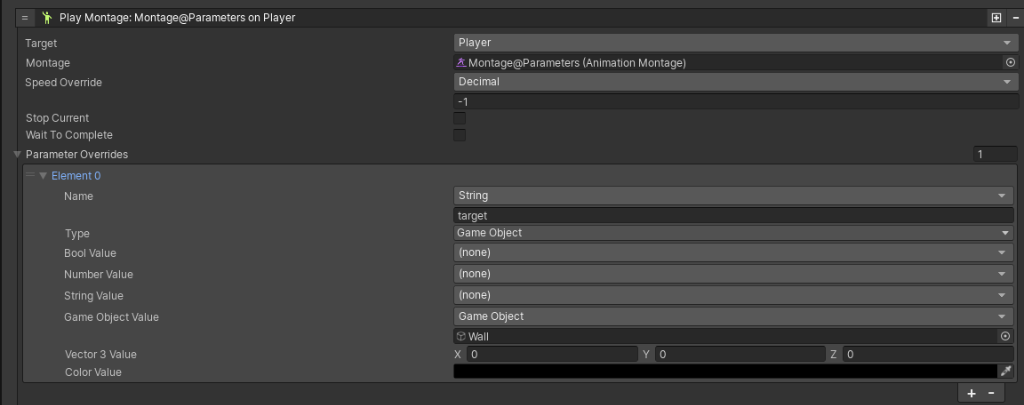
Here is how these actions look inside Game Creator 2 Visual Scripting sheets, highlighting advanced parameters and state transitions:
Play Montage with Parameter Overrides
When triggering play commands using the Play Montage action, you can dynamically override default timeline parameters (like assigning a runtime target GameObject such as a specific wall, potion, or anchor prop) without altering the base asset.
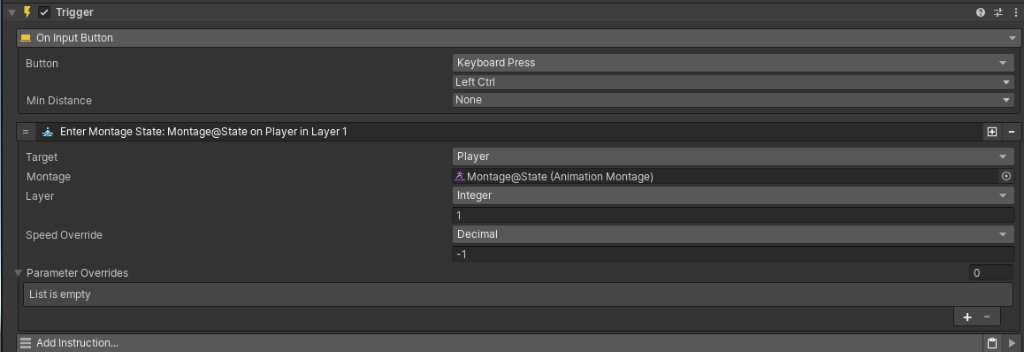
Entering Stance States
Use the Enter Montage State action to seamlessly inject animation clips as persistent states on specific animator layers. Excellent for dynamic poses (such as crouch, cover, or item holding) triggered by key bounds.