Timeline Authoring
Detailed technical reference for the five timeline elements that coordinate animation files with Game Creator actions.
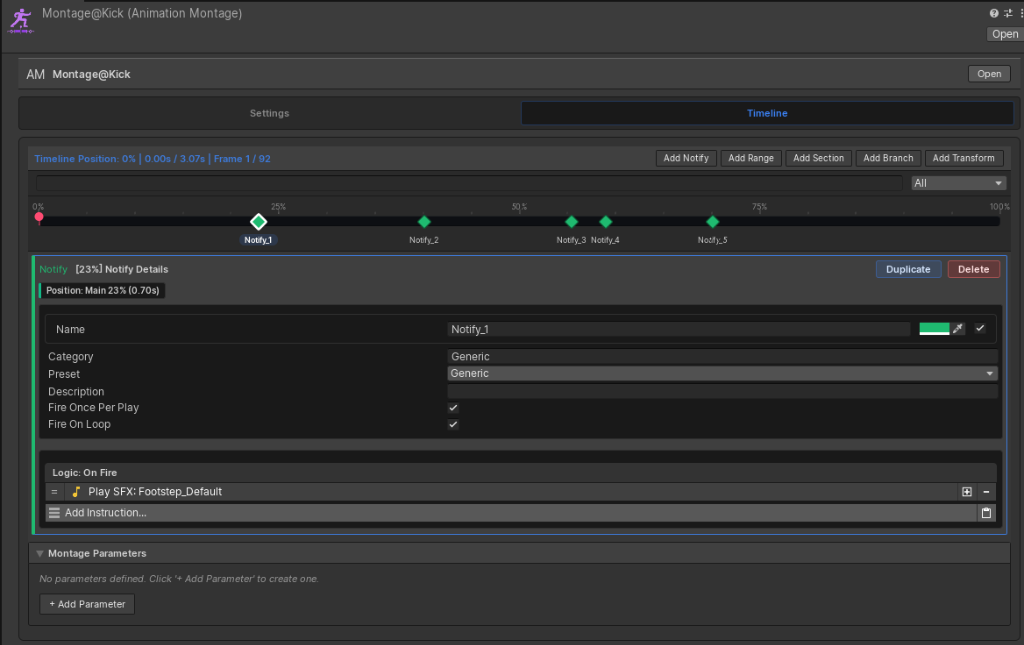
Fires exactly when the playhead crosses the defined percentage. Best for one-off actions.
- Usage: Trigger audio pops, spawn visual trails, play footstep audio, or fire custom signals.
- Visual Scripting: Executes a single Game Creator 2 Instruction List synchronously.
- C# Scripting: Invokes the
OnNotificationFiredcallback event with the notifier's ID.
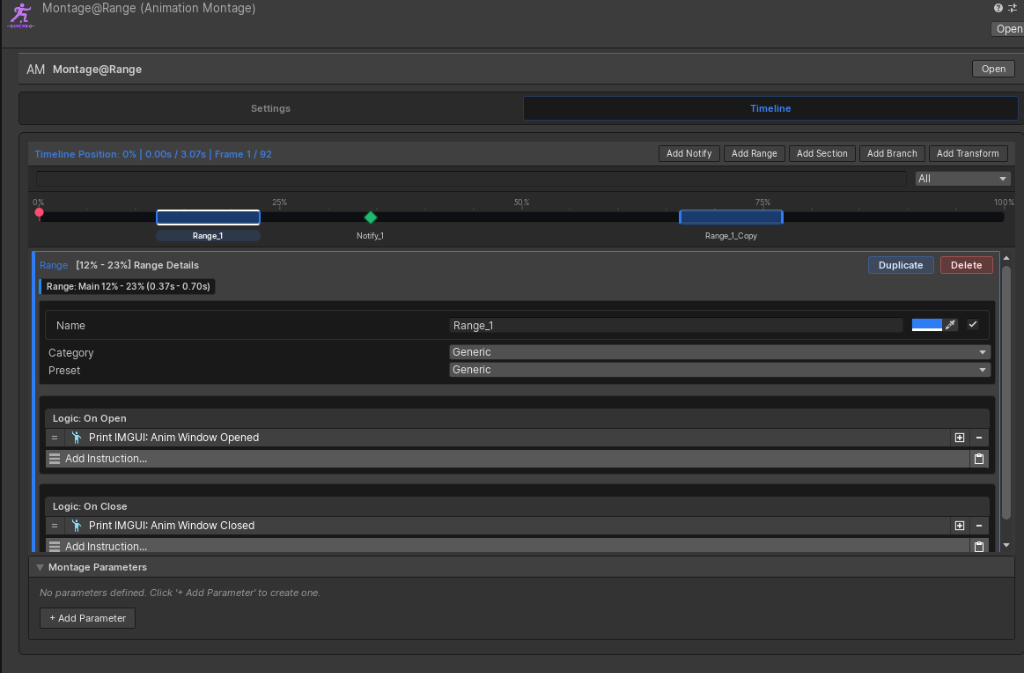
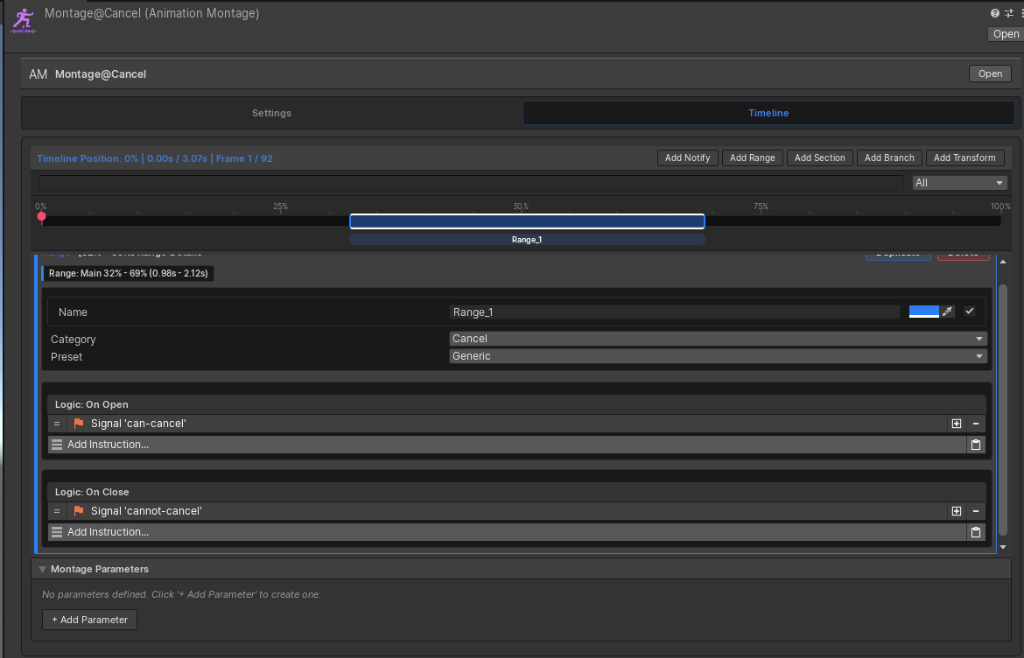
Defines a span of time (e.g., 20% to 55%) that executes custom logic upon entering and exiting the window.
- Usage: Status effect ranges, character snaps, cancel windows, or invincibility buffers.
- Visual Scripting: Links two distinct Instruction Lists: one runs when entering the window, and one runs when exiting.
- C# Scripting: Can be queried at runtime using
player.IsWindowActive("ID").
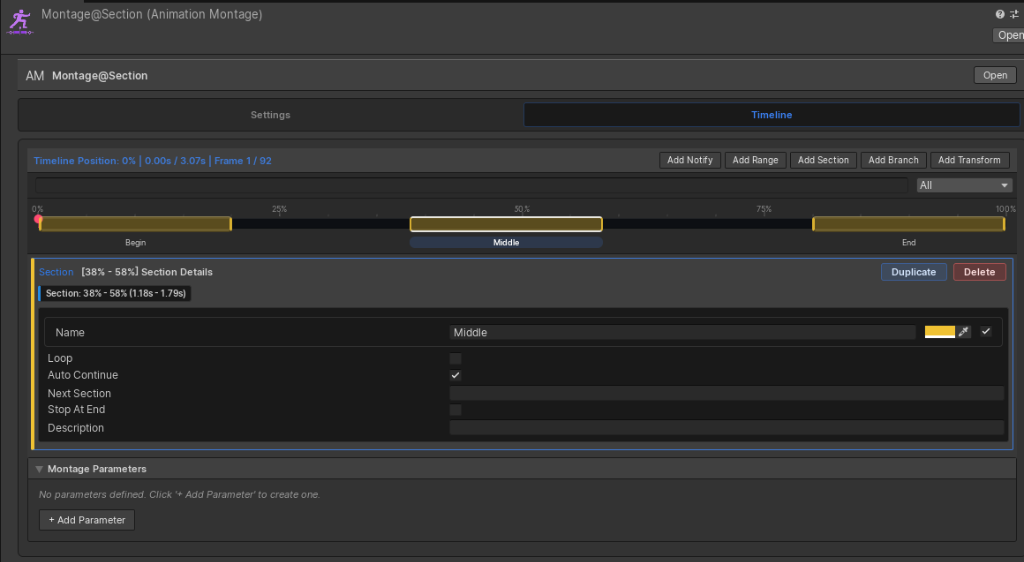
Timeline anchors that segment the montage into logical zones (e.g., Start, Loop, Recover).
- Usage: Creating multi-stage interactions, loop phases, or recovery cancel jumps.
- Ticking flow: Plays sequentially by default, but you can trigger instant jumps to loop or skip sections using actions or code.
Decision gates at keyframes that evaluate standard Game Creator 2 Conditions to dynamically alter the playback path.
- Usage: Check inputs during vaults. If inputs match, jump to the next animation; otherwise, let it blend out.
- Success / Fail Logic: Define distinct transition results for satisfied versus failed conditions (e.g., jump section vs. stop).
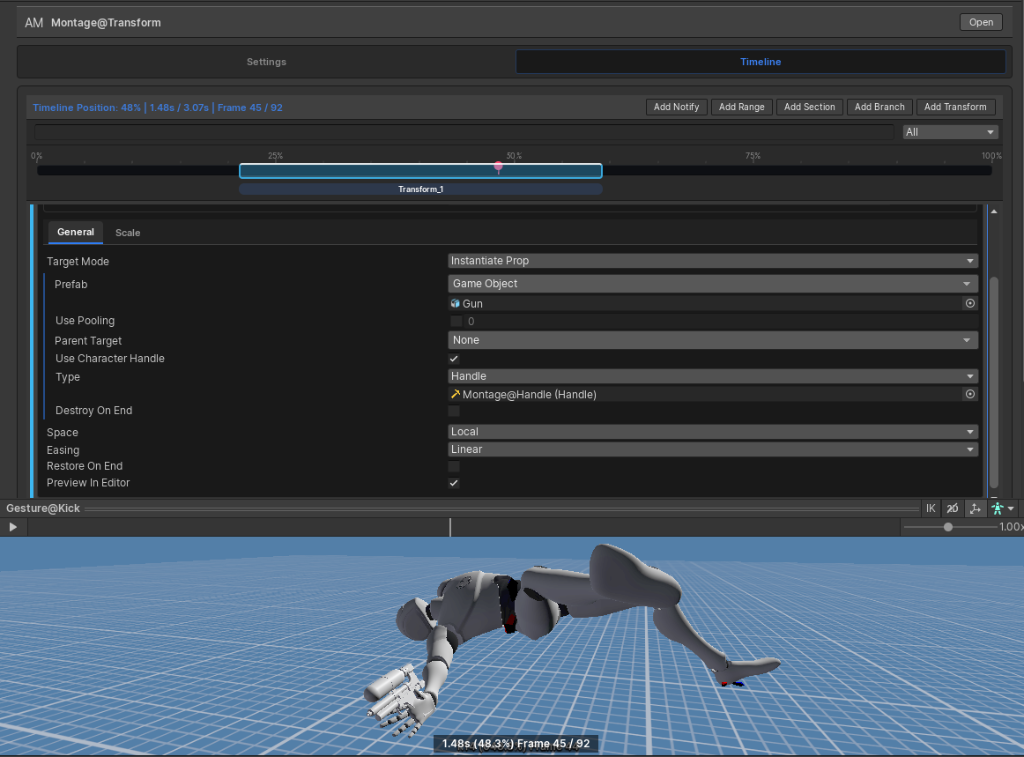
Applies custom spatial offsets (position, rotation, scale) to targeted bone slots, character roots, or props over a range.
- Usage: Snapping hips to door frames, locking characters toward targets, or instantiating and parenting item props (e.g., potion bottles, keys) to bone handles.
- Easing Curves: Supports easing configurations (Linear, EaseInOut) and automatic cleanup of coordinates and spawned props when exiting.
Interruption & Runtime Parameters
Configure conflict priorities and pass dynamic variables directly to your playhead at runtime:
Interruption Priority
Control what happens when multiple montages play together. Enable Require Cancel Window to prevent overrides unless active cancel windows are met.

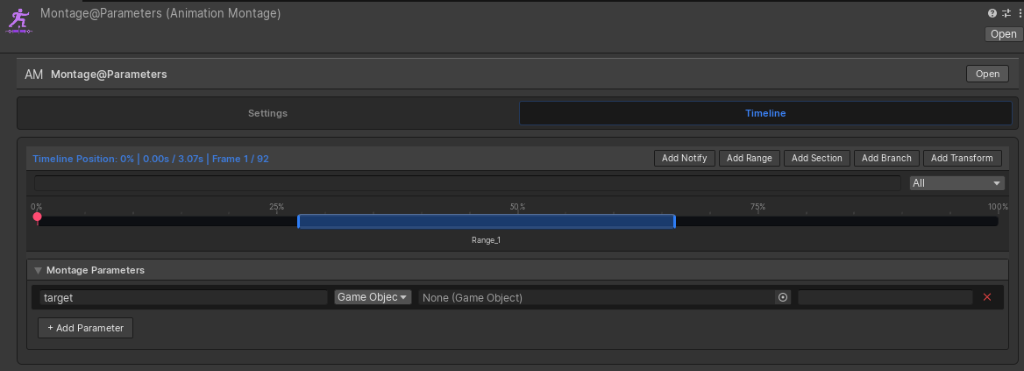
Montage Parameters
Define dynamic variables (GameObjects, floats, vectors) inside the asset, allowing you to pass target positions or speed scales at runtime.