#Getting Started
This guide walks through creating your first interface, generating a View Prefab, and opening it via Game Creator 2 Instructions.
#Requirements
| Requirement | Status |
|---|---|
| Unity | Unity 2022.3 LTS, Unity 6 (6000.0+), or Unity 6.5+. |
| Game Creator 2 | Game Creator 2 Core (v2.18.60+) is required. |
#Installation
- Import Interface Director for Game Creator 2 into your Unity project.
- Ensure Game Creator 2 Core is installed and compiling.
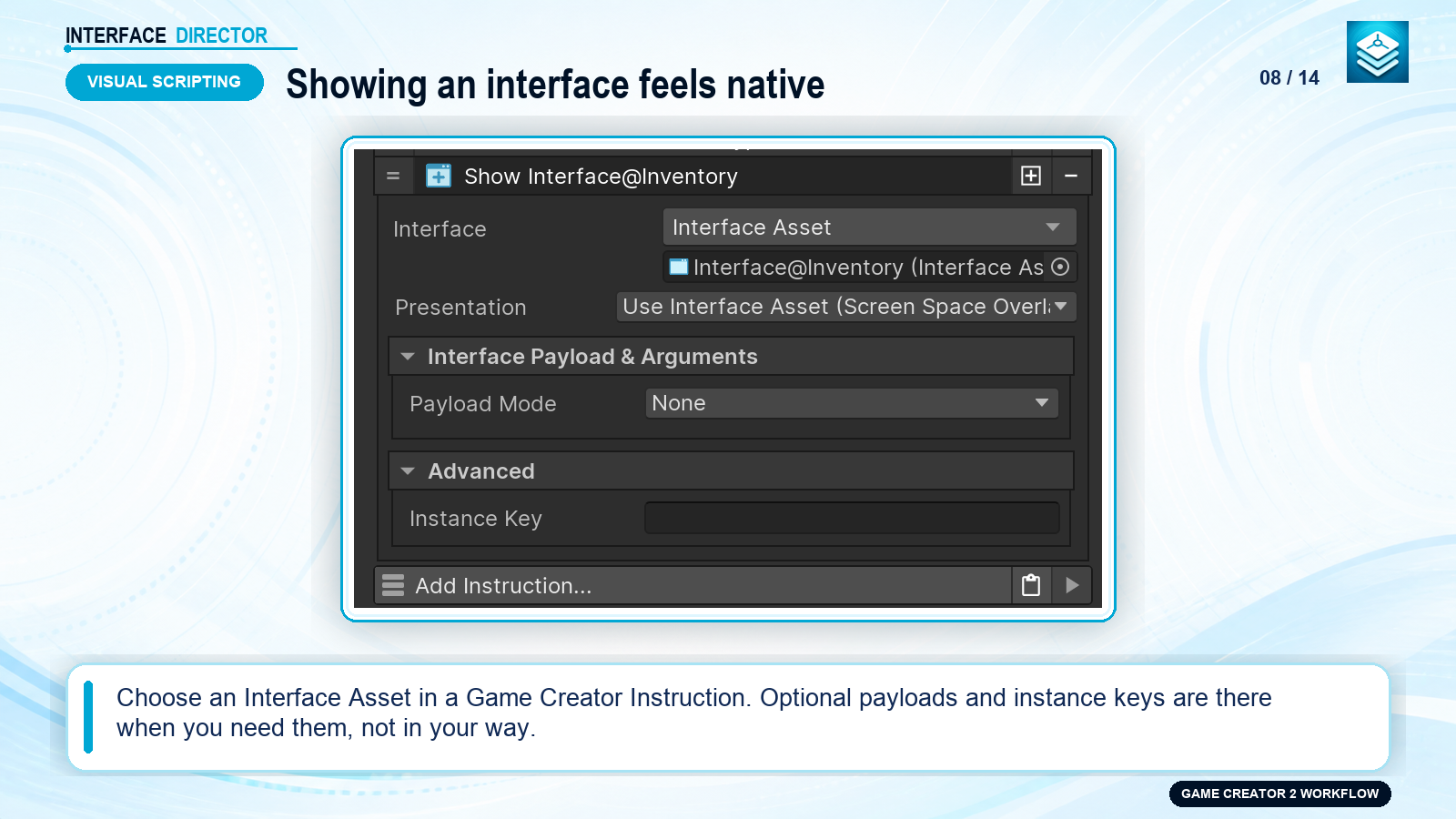
- Open Project Settings > Game Creator > Interface Director to review project defaults.
ShowcaseOpen full size ↗
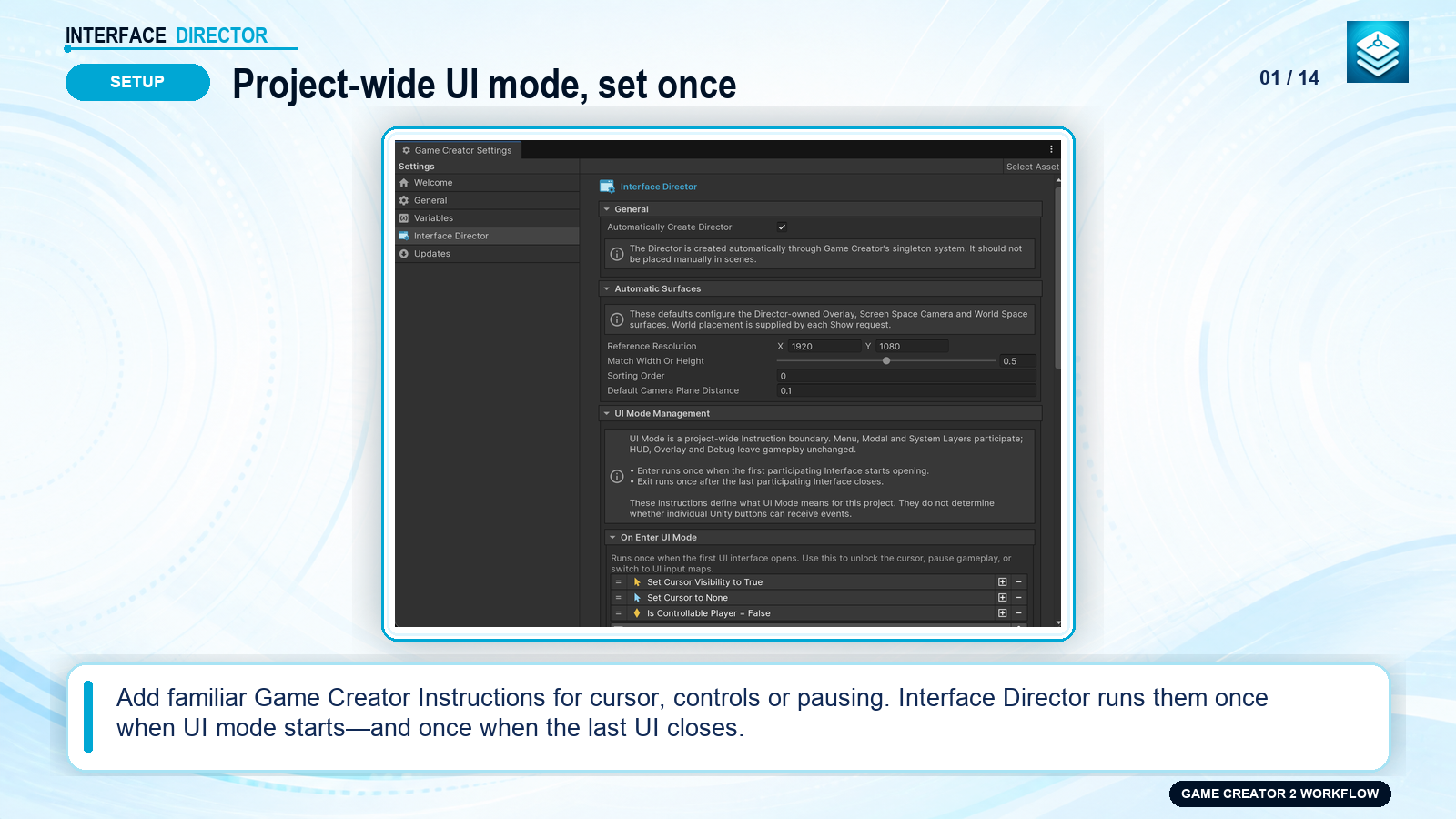
#Core 4-Step Workflow
Step 1: Create Interface Asset -> Assets > Create > Game Creator > Interface Director > Interface
Step 2: Generate View Prefab   -> Click "Create View Prefab" or "Create UI Toolkit View" in Inspector
Step 3: Author UI Layout       -> Add visual elements beneath Content transform or edit UXML/USS
Step 4: Open via Visual Script -> Add "Show Interface" instruction in any Game Creator Action
#Step 1: Create an Interface Asset
- In the Project window, right-click and choose Create > Game Creator > Interface Director > Interface.
- Enter a name (e.g.
PauseMenu) and select a starting preset (such as Menu). - Click Create Interface. This creates a lightweight
PauseMenu.assetfile holding all navigation rules and policies.
#Step 2: Generate the View Prefab
Open PauseMenu.asset in the Inspector:
- uGUI Workflow: Click Create View Prefab. Interface Director generates
PauseMenu View.prefabequipped withCanvas,CanvasGroup,GraphicRaycaster,InterfaceView, and a dedicatedContentcontainer. - UI Toolkit Workflow: Click Create UI Toolkit View. Interface Director automatically creates the View Prefab, paired
.uxmllayout,.ussstylesheet, default panel settings, andUIToolkitInstructionBinder.
ScreenshotOpen full size ↗
#Step 3: Open from Game Creator
- Create an Action (or Trigger) in your scene.
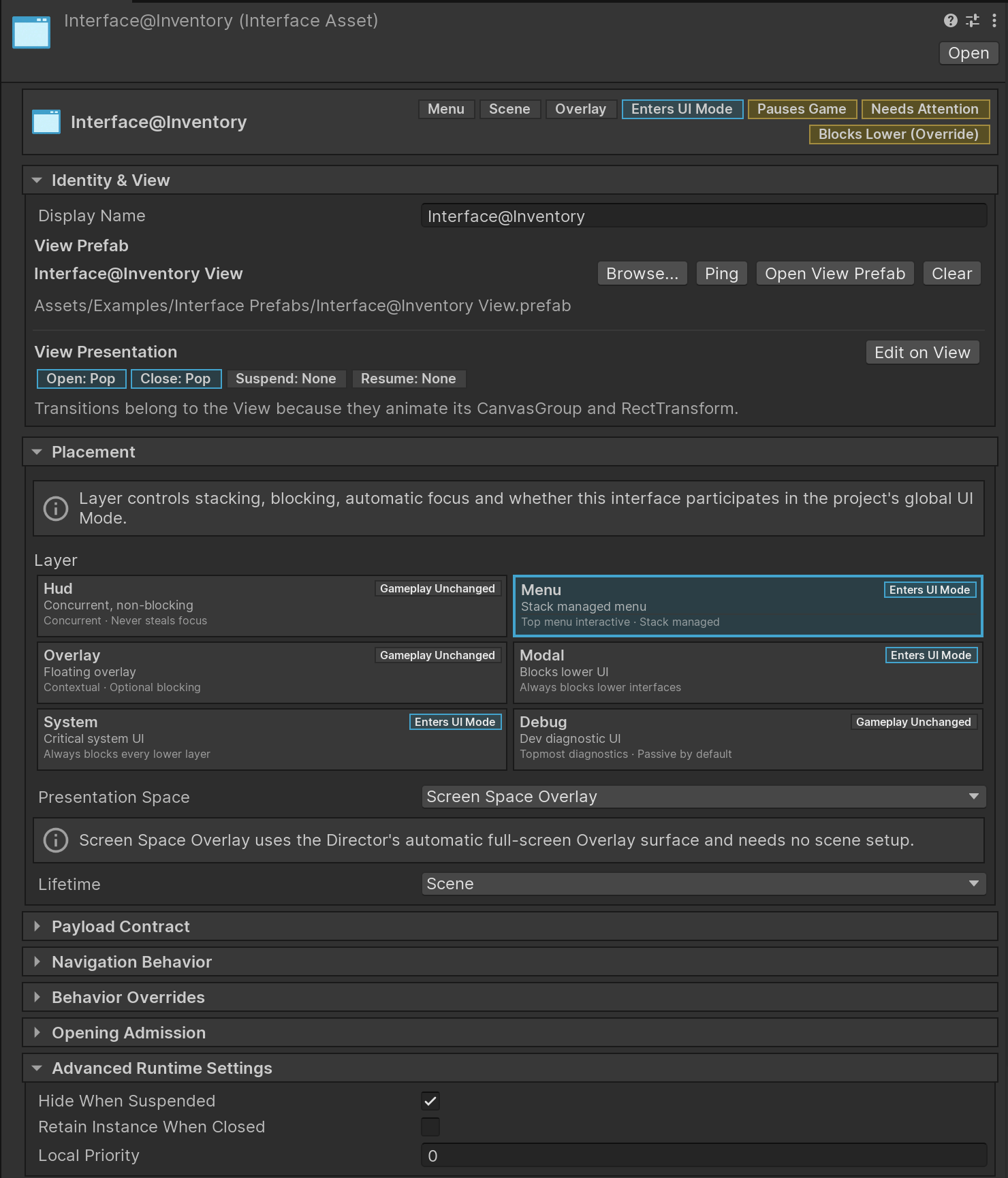
- Add the Instruction: UI > Interface Director > Show Interface.
- Assign your
PauseMenuasset to the Interface Asset property. - Enter Play Mode and trigger the action. Interface Director instantiates the View, manages the layer stack, and handles UI Mode transitions automatically!
ShowcaseOpen full size ↗