Gameplay Tags for Game Creator 2
Hierarchical gameplay tags, tag containers, Game Creator Actions, Conditions, Events, and a runtime C# API for cleaner gameplay logic.
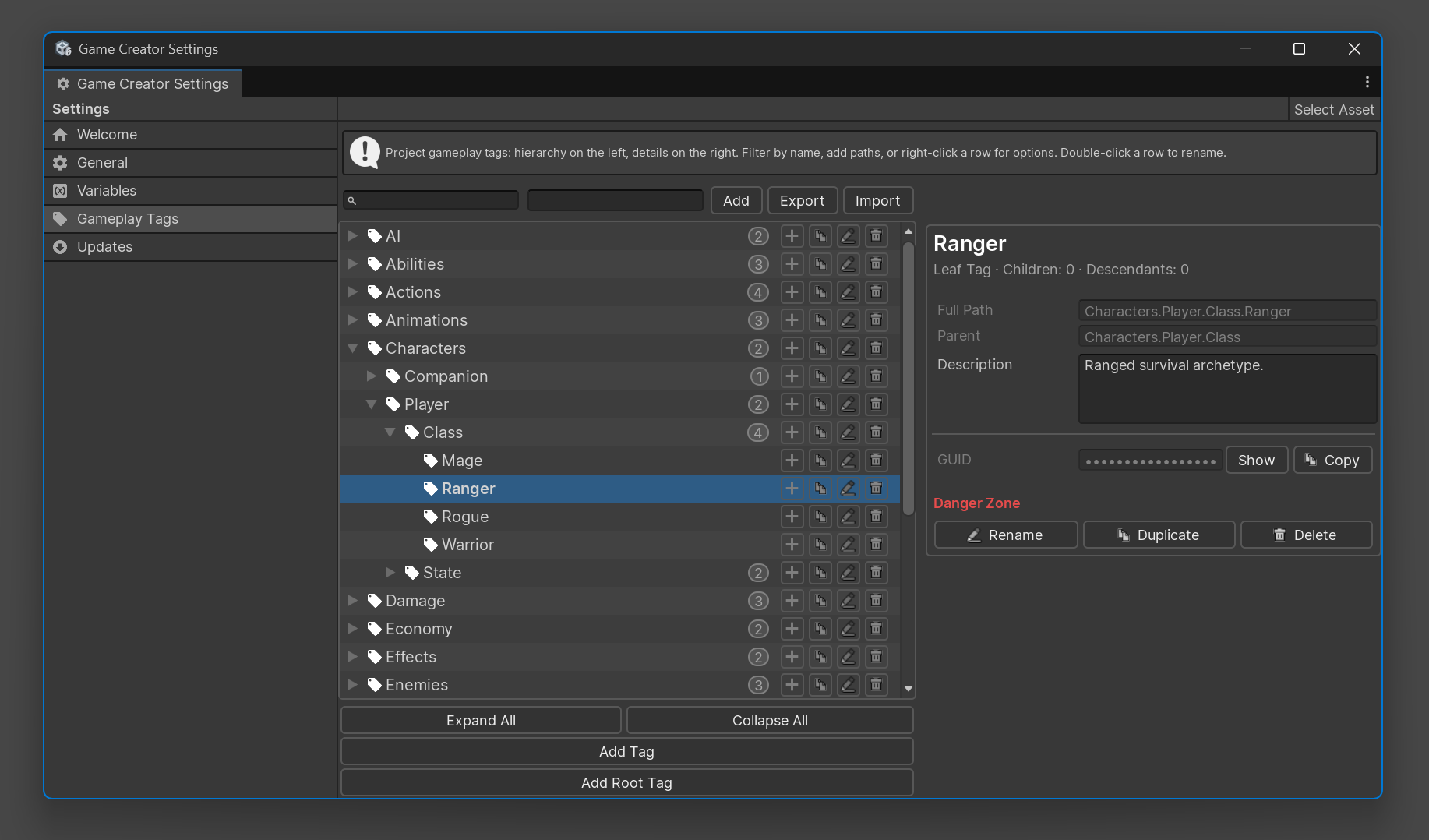
Gameplay Tags for Game Creator 2 brings an Unreal Engine-style Gameplay Tags workflow to Unity and Game Creator 2. It gives your project a shared, searchable language for gameplay state, object identity, factions, damage types, quests, interactions, and more.
Instead of scattering booleans and hand-typed strings across Actions, Conditions, prefabs, and scripts, you define tags once and reuse them everywhere.
Character.State.Stunned
Character.State.Burning
Damage.Type.Fire
Faction.Enemy
Quest.Main.Completed
Interaction.Usable.Door
#Why Gameplay Tags?
Gameplay Tags solve a common production problem: as a project grows, gameplay logic becomes harder to read and harder to maintain.
Without tags, logic often becomes a mix of:
IsStunned = true
IsBurning = true
EnemyType = "Undead"
DamageType = "Fire"
That works for prototypes, but it does not scale well across designers, prefabs, Game Creator graphs, save data, and custom scripts.
Gameplay Tags help you build cleaner systems because they are:
- Centralized: Define tags in one project database.
- Reusable: Use the same tags in Actions, Conditions, Events, Variables, inspectors, and scripts.
- Hierarchical: Query broad categories like
Damage.Typeor specific tags likeDamage.Type.Fire. - Readable: Logic communicates design intent directly.
- Designer-friendly: Pick tags from dropdowns instead of typing strings by hand.
#Main Features
| Feature | What It Helps With |
|---|---|
| Hierarchical tags | Organize gameplay concepts with dot syntax. |
| Parent/child matching | Match exact tags or broad categories. |
| Tag database | Manage project tags in a central Game Creator settings page. |
| Tag picker dropdowns | Select valid tags in inspectors and Game Creator fields. |
| Tag containers | Store multiple tags on objects, variables, and properties. |
| Game Creator Actions | Add, remove, set, find, filter, raycast, and overlap by tags. |
| Game Creator Conditions | Branch logic based on tags and tag containers. |
| Game Creator Events | React to tag changes, triggers, and collisions. |
| Runtime API | Use Gameplay Tags from custom C# systems. |
| Validation tools | Detect invalid paths, duplicates, and redirect issues. |
#Quick Start
- Open the Gameplay Tags settings page in Game Creator.
- Create a tag such as
Character.State.Stunned. - Add a
GameplayTagComponentto a player, enemy, or interactable prefab. - Assign one or more tags to that component.
- Use Game Creator Actions and Conditions to add, remove, or check tags during gameplay.
#Documentation
- Getting Started
- Gameplay Tags Overview
- Tag Manager
- Tag Containers
- Game Creator Actions
- Game Creator Conditions
- Scripting API
- Best Practices
- FAQ
- Changelog
#A Simple Example
Imagine an enemy becomes stunned.
With Gameplay Tags:
- Add
Character.State.Stunnedto the enemy. - Movement logic checks whether the enemy has that tag.
- AI logic checks the same tag before attacking.
- UI logic can show a stunned indicator.
- When the stun ends, remove the tag.
The tag becomes a shared gameplay fact. Every system reads the same state, using the same name, without duplicating variables or string constants.
#When to Use Gameplay Tags
Use Gameplay Tags for:
- Character states.
- Factions and teams.
- Damage types and resistances.
- Quest states and quest categories.
- Interaction types.
- Item categories.
- Abilities, buffs, debuffs, and gameplay flags.
Use variables or custom data for:
- Health, mana, stamina, score, currency, or quantities.
- Timers, cooldowns, and durations.
- Object references.
- User-facing text.
- Values that require math, ranges, or sorting.