#Tag Manager
The Gameplay Tags settings page is where you create, organize, document, import, export, and validate your project's tag database.
#Open the Tag Manager
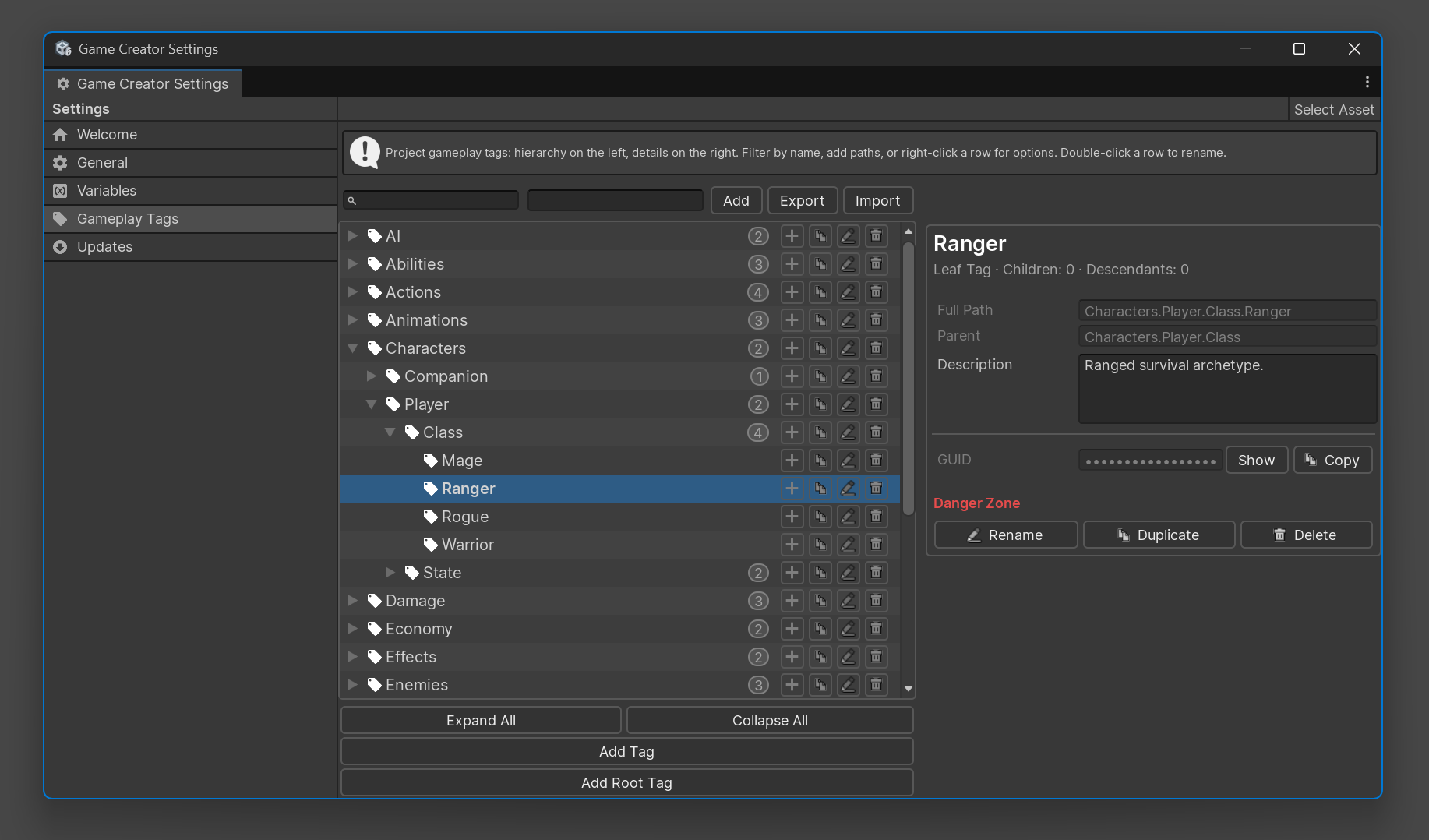
Open Game Creator settings and select Gameplay Tags.
TODO: Verify the exact menu path in the final packaged asset. The code exposes a full-screen Game Creator settings page named Gameplay Tags.
#Interface Overview
The tag manager is split into two main areas:
| Area | Purpose |
|---|---|
| Hierarchy | Browse, search, create, rename, delete, duplicate, and reorganize tags. |
| Details | View the selected tag, edit its description, copy its GUID, and perform tag actions. |
#Create Tags
Start with a small set of root categories:
Character
Damage
Faction
Interaction
Item
Quest
World
Then create child tags as your project needs them:
Character.State.Stunned
Damage.Type.Fire
Faction.Enemy
Interaction.Usable.Door
Quest.Main.Completed
#Valid Paths
Valid tag paths:
- Are not empty.
- Do not start or end with a dot.
- Do not contain double dots.
- Do not contain
/. - Do not contain empty segments.
Good:
Damage.Type.Fire
Avoid:
.Damage
Damage.
Damage..Fire
Damage/Fire
#Rename Tags
Select a tag and use Rename, double-click the row, press F2, or use the context menu.
Renaming a parent tag renames its subtree. For example:
Damage.Element.Fire
can become:
Damage.Type.Fire
Important
TODO: Verify whether the packaged asset performs project-wide reference rewriting for serialized references outside the tag database. The runtime includes redirect support, but I did not find clear code that scans and rewrites every scene, prefab, or asset reference during rename.
#Delete Tags
Deleting a tag removes that tag and its descendants from the database after confirmation.
Example: deleting
Character.State
also removes:
Character.State.Stunned
Character.State.Burning
Character.State.Dead
Important
TODO: Verify whether delete workflows include project-wide reference detection before removal. Documented behavior should be treated as database deletion unless reference scanning is confirmed.
#Search and Navigation
Use search to filter large hierarchies:
Fire
Quest.Main
Faction
Interaction.Usable
Use expand and collapse controls to quickly scan a large database.
Keyboard shortcuts supported by the manager include:
| Shortcut | Action |
|---|---|
F2 or Enter |
Rename selected tag. |
Delete or Backspace |
Delete selected tag. |
Ctrl+C or Cmd+C |
Copy selected tag path. |
| Left Arrow | Collapse selected tag or move to parent. |
| Right Arrow | Expand selected tag. |
#Details Panel
Selecting a tag shows its details.
| Field | Purpose |
|---|---|
| Full Path | The complete tag path used by Actions, Conditions, and code. |
| Parent | The parent category, if any. |
| Description | Notes for designers about when to use the tag. |
| GUID | Internal identity value that can be shown, hidden, or copied. |
| Children / Descendants | Quick summary of hierarchy depth. |
Use descriptions for tags that are shared across many systems.
Good description:
Applied while a character cannot move, attack, or interact. Remove when the stun effect expires.
#Context Menu Actions
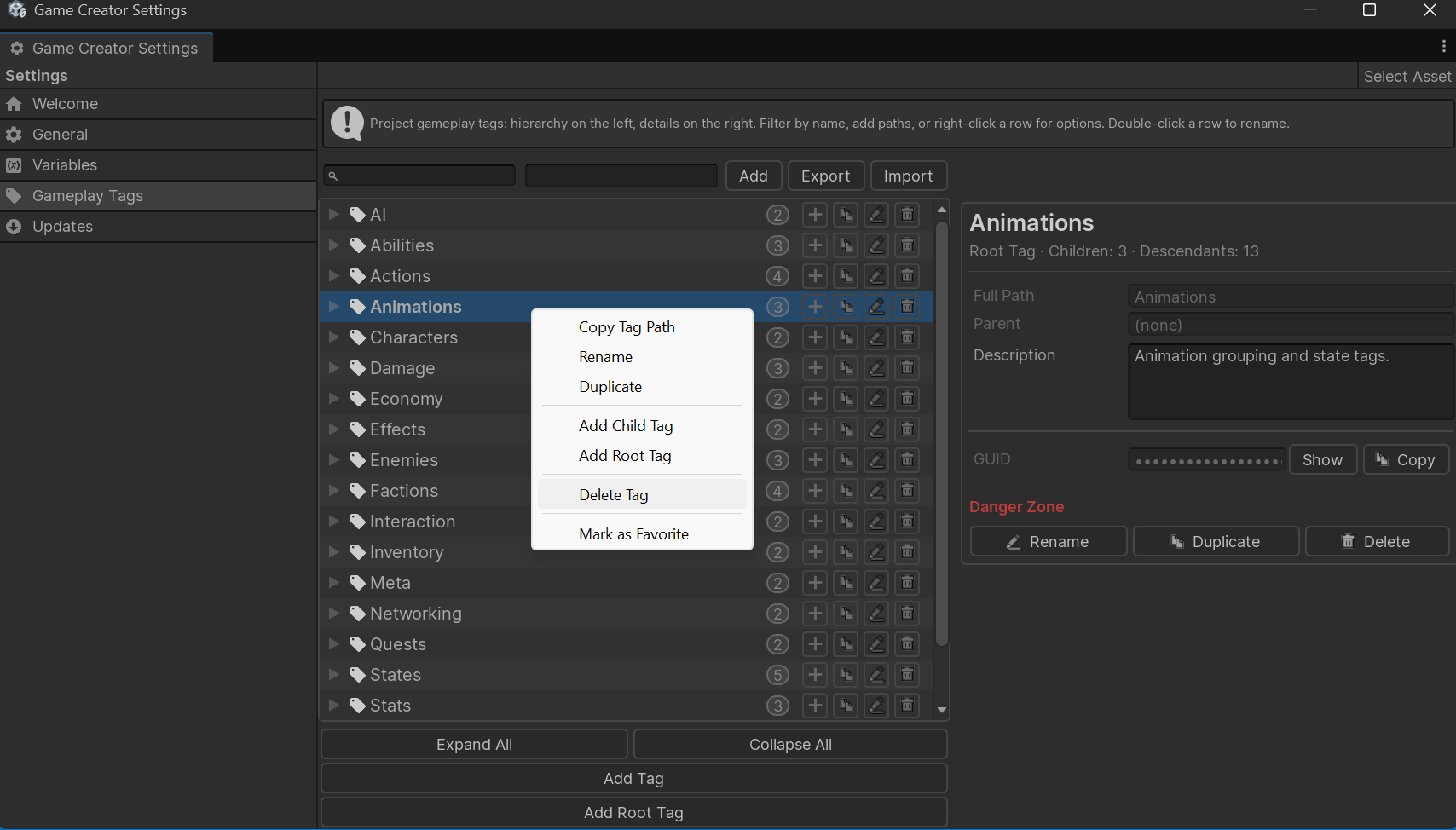
Right-click a tag row to access common actions:
- Add Child Tag
- Add Root Tag
- Rename
- Delete Tag
- Copy Tag Path
- Duplicate
#Drag Reparenting
Tags can be reorganized by moving a subtree under another valid parent.
Example:
Element.Fire
can be moved under:
Damage.Type
to become:
Damage.Type.Fire
This is useful when a project vocabulary matures and you want to group older tags more cleanly.
#Import and Export
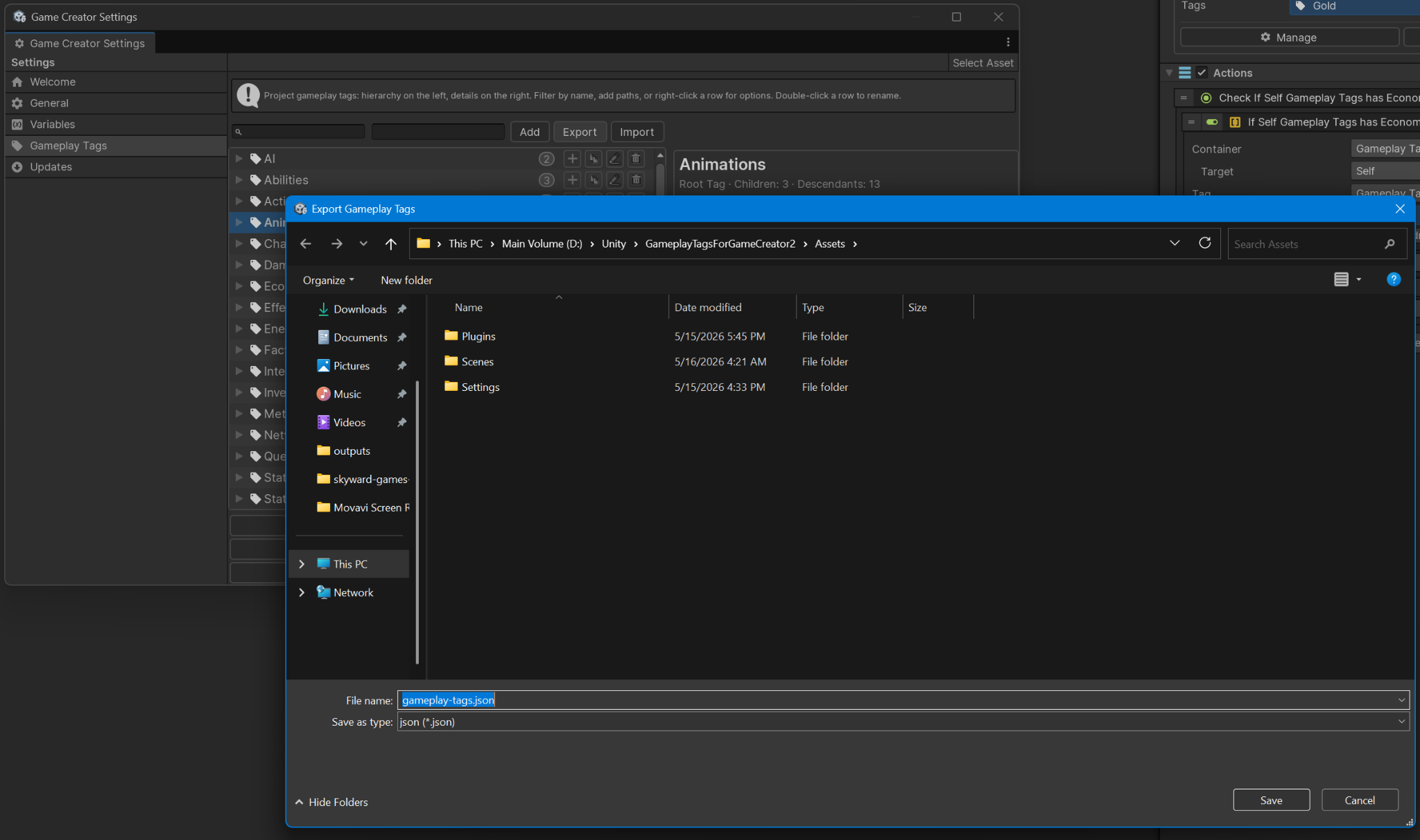
The tag manager supports JSON import and export.
Use Export before large changes, or when sharing a tag database between projects.
Use Import to load a JSON tag database.
Import modes:
| Mode | Behavior |
|---|---|
| Merge | Keep existing tags and update or add imported tags. |
| Replace | Clear existing tags and redirects, then load the imported file. |
#Validation
Validation can report:
- Invalid paths.
- Duplicate paths.
- Redirect targets that no longer exist.
- Redirect cycles.
Run validation after imports, large renames, or database cleanup.
#Reference Tracking and Redirects
The runtime includes redirect resolution for renamed paths when redirects are present. This helps older paths resolve to newer paths at runtime.
TODO: Verify the complete reference tracking workflow in the final build. I did not find a confirmed user-facing reference list that scans scenes, prefabs, variables, Actions, and Conditions before rename/delete.
#Naming Recommendations
Prefer names that read like gameplay facts:
Character.State.Stunned
Damage.Type.Fire
Faction.Enemy
Quest.Main.Completed
Interaction.Usable.Door
Avoid names that are vague, temporary, or hard to search:
Thing.Active
Bad.Fire
State1
Temp
Recommended style:
- Use singular category names.
- Start broad, then become specific.
- Keep segments short and meaningful.
- Avoid spaces and punctuation.
- Use parent categories when broad matching is useful.
- Do not store numbers or quantities in tag names.