
Asset References for Game Creator 2
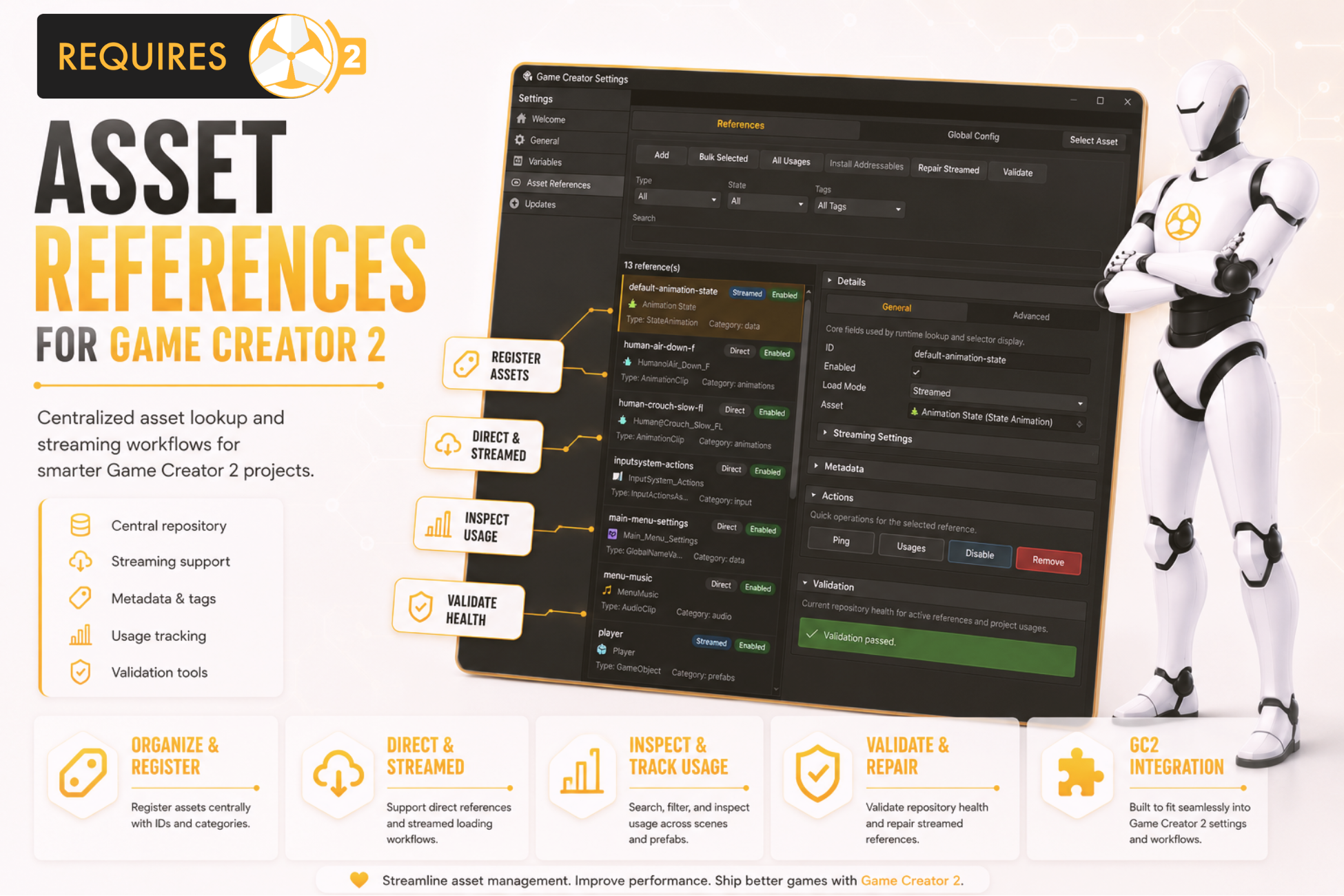
Centralized asset lookup and streaming workflows for smarter Game Creator 2 projects.
#Why Asset References?
Dragging the same project asset into every Game Creator instruction works at first, but it becomes fragile when assets move, variants grow, or teams need a shared naming language. Asset References lets designers register assets once, give them readable Reference IDs, and then choose those IDs from type-safe Game Creator selectors.
The normal workflow stays plug-and-play: use Direct references for serialized project assets, switch selected entries to Streamed when Addressables-backed loading is needed, and keep the same selectors, variables, events, and runtime APIs around both modes.
#Main Features
| Feature | What it gives your project |
|---|---|
| Central repository | A single Game Creator Settings panel for registered assets, IDs, metadata, and validation. |
| Direct and Streamed modes | Synchronous direct references by default, Addressables-backed streaming when memory control matters. |
| Typed selectors | Game Creator property fields only show compatible registered assets. |
| Metadata and tags | Organize references by display name, category, tags, notes, enabled state, and type hints. |
| Runtime API | Resolve assets from C# with AssetReferences.Get<T>, TryGet<T>, async loading, preload, and release. |
| GC2 integration | Properties, Conditions, Events, Instructions, and local/global Asset Reference variables. |
| Validation tools | Validate IDs, missing assets, duplicates, scene object references, streamed metadata, and serialized usages. |
#Quick Workflow
- Open
Game Creator Settings > Asset References. - Select a project asset and click
Add Asset Referencein the Inspector. - Confirm the generated Reference ID, category, tags, and notes.
- In a Game Creator property field, choose
Asset References/Asset Reference. - Pick the registered reference from the typed selector.
- Run
Validatebefore shipping or after large content changes.
#Documentation Sections
#Simple Example
Register an AudioClip as audio-hit-impact. In the standard Game Creator Play Sound Effect instruction, open the Audio Clip selector, choose Asset References/Asset Reference, and select audio-hit-impact. If the file later moves in the Project window, the instruction still points at the same registered ID.