
#Register & Select
Asset References is built around quick registration and a compact selector experience.
#Inspector Add Button
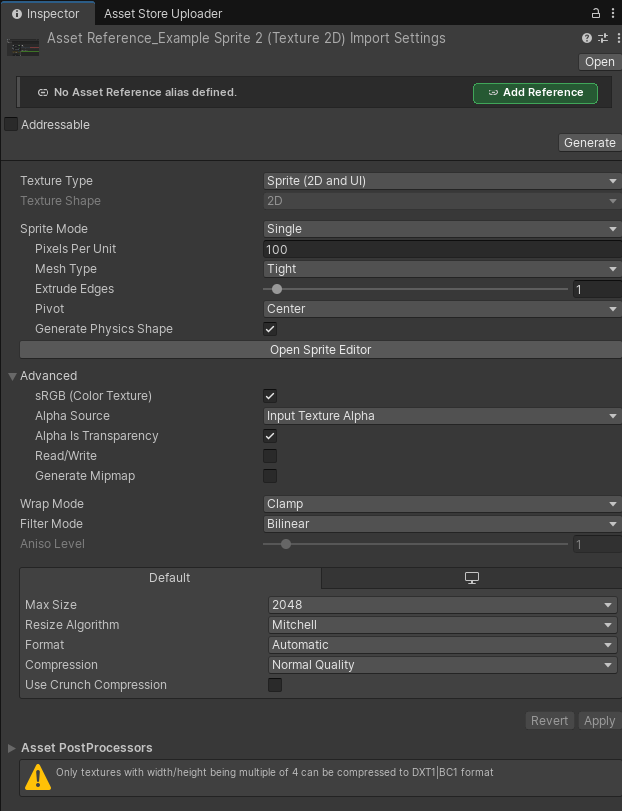
Select a project asset and use the Inspector Add Asset Reference button. The popup lets you confirm the generated ID and add metadata before anything is written.
#Project Context Menus
Right-click one or more assets in the Project window and use:
Asset References > Add Reference
Asset References > Bulk Generate References
Single-asset add opens the naming popup. Bulk generation opens a preview first, so no references are written until you confirm.
#Selector Dropdown
Supported Game Creator property fields get an Asset References/Asset Reference source. The selector is type-filtered, so an AudioClip field only shows AudioClip references.
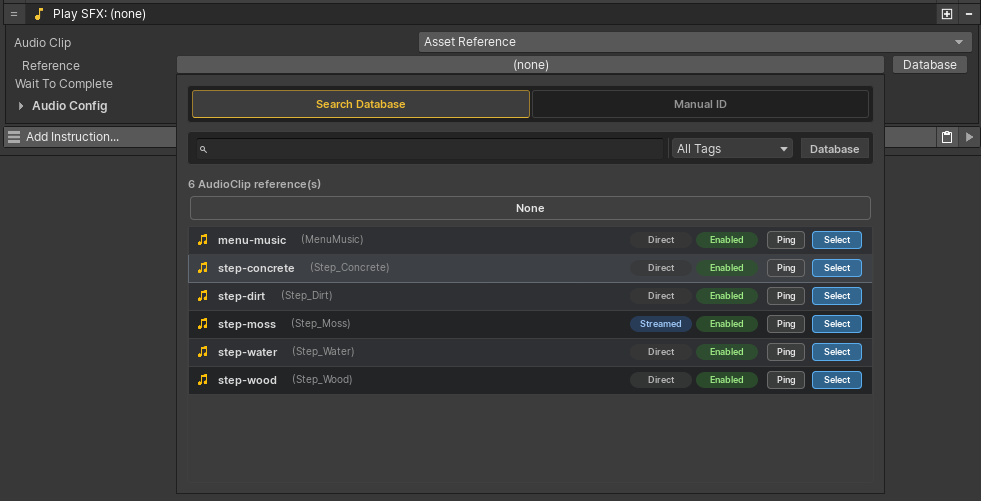
The selector keeps the main inspector compact. Search and tag filters live in the popup, while normal fields still look like familiar GC2 property selectors.
#Manual ID
Use the Manual ID tab when a field should resolve a literal Reference ID or a dynamic string source. This is useful for custom runtime flows where the ID comes from a variable, condition, or script-driven value.
Database-selected IDs stay plain string-backed so namespaced IDs and slash segments are preserved. Dynamic Manual ID values can use GC2 string-property sources.
#Asset Reference Variables
Asset References adds an Asset Reference value type to Game Creator 2 local and global name variables.
- Create a Local Name Variables component or Global Name Variables asset.
- Add a variable with type
Asset Reference. - Pick an initial Reference ID.
- Use
Set Local Asset ReferenceorSet Global Asset Referenceat runtime. - Use a variable-backed Asset Reference selector to resolve the current ID dynamically.
The variable stores the Reference ID, not the loaded Unity object. Direct and Streamed loading still go through the normal runtime cache.